Connect Northstar to Slack to keep project conversations and project updates closer together.
Once connected, Northstar can send project updates to Slack channels and provide links back to the relevant project.
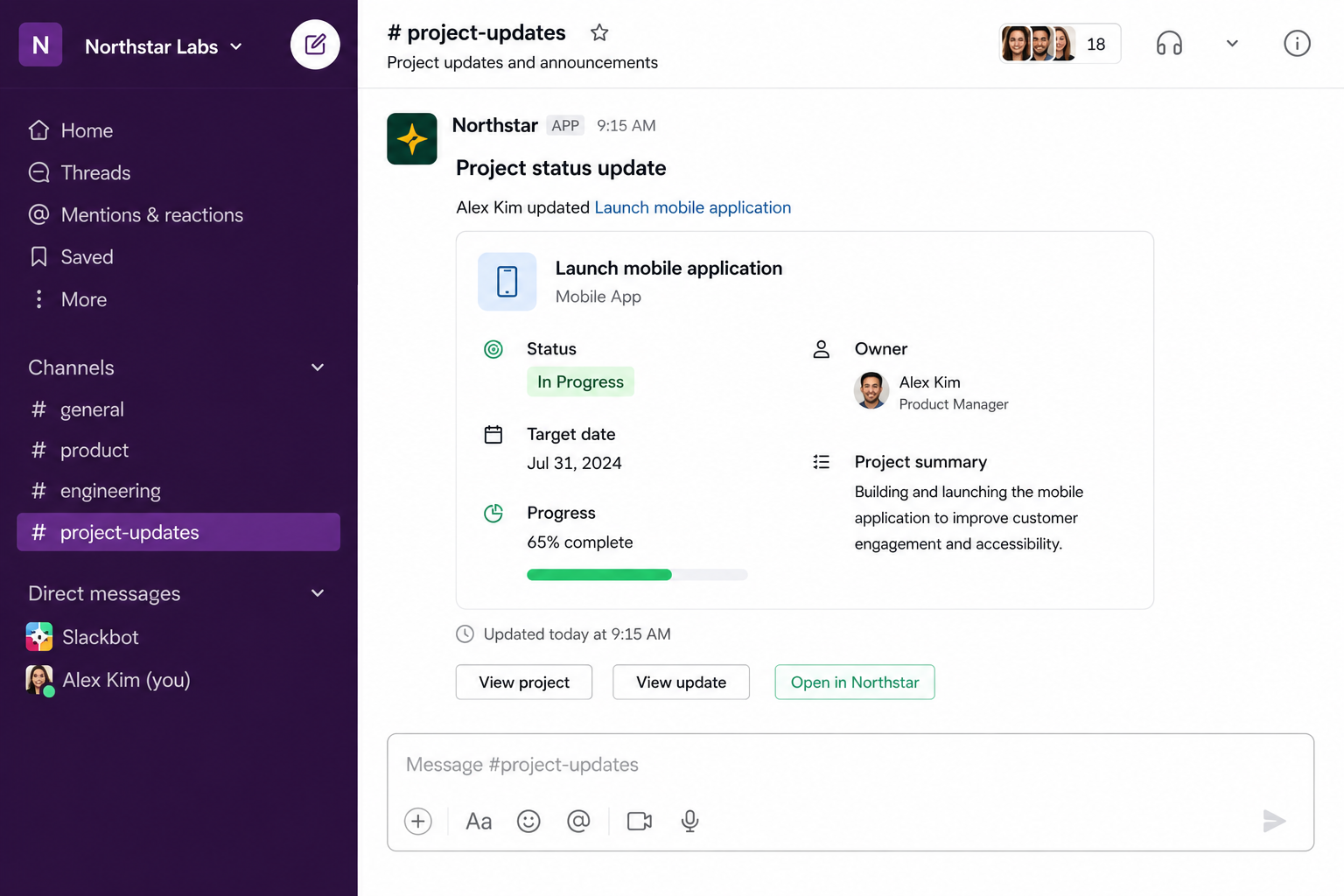
What the Slack integration can do
The Northstar Slack integration can:
Post project status updates to a channel
Notify a channel when a project changes status
Share milestone updates
Link directly from Slack to a Northstar project
Before you start
You need:
A Northstar account
Access to the Northstar workspace
Permission to install apps in your Slack workspace
Your Slack administrator may need to approve the integration.
Connect Slack
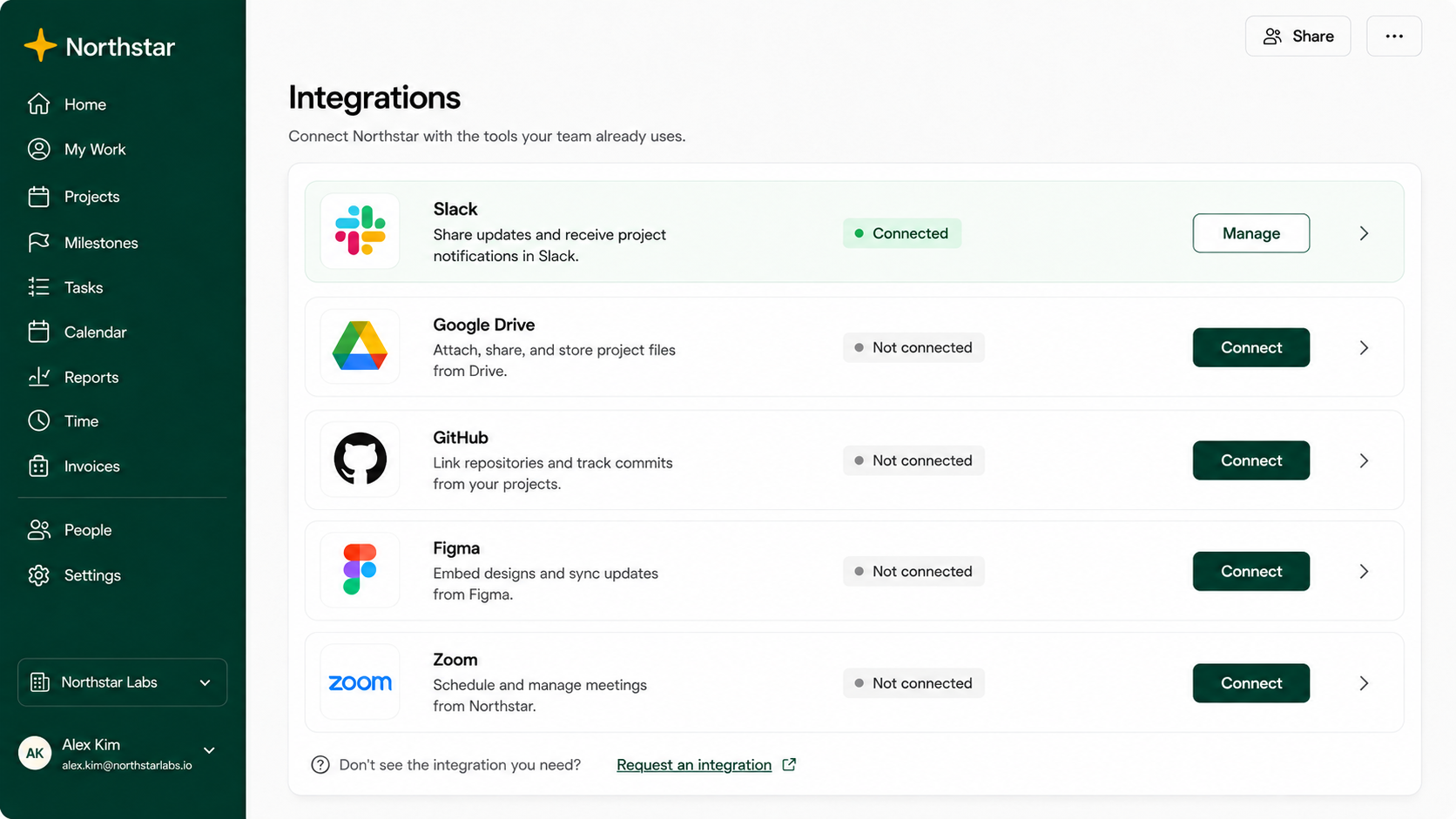
Open Northstar.
Select Settings.
Select Integrations.
Find Slack.
Select Connect.
Sign in to Slack.
Choose the Slack workspace you want to connect.
Review the requested permissions.
Select Allow.
Connect a project to a Slack channel
Open the project.
Select Project settings.
Under Slack channel, select Connect channel.
Choose a Slack channel.
Select which notifications you want to send.
Select Save.
Choose which updates are sent
Notification | Example |
|---|---|
Status changes | Project changed from On track to At risk |
Status updates | A new weekly project update was published |
Milestones | A milestone was completed |
Target date changes | The project's target date moved |
For busy Slack channels, we recommend enabling only status updates and major project changes.
Troubleshooting
I can't connect Slack
Check that:
You're signed in to the correct Slack workspace.
Your organisation allows third-party Slack apps.
You have permission to install apps.
My channel isn't listed
Private channels only appear if Northstar has been added to the channel.
Open the private channel in Slack.
Add the Northstar app.
Return to Northstar.
Refresh the available channels.
It may take several seconds for a newly added Slack channel to appear in Northstar.